

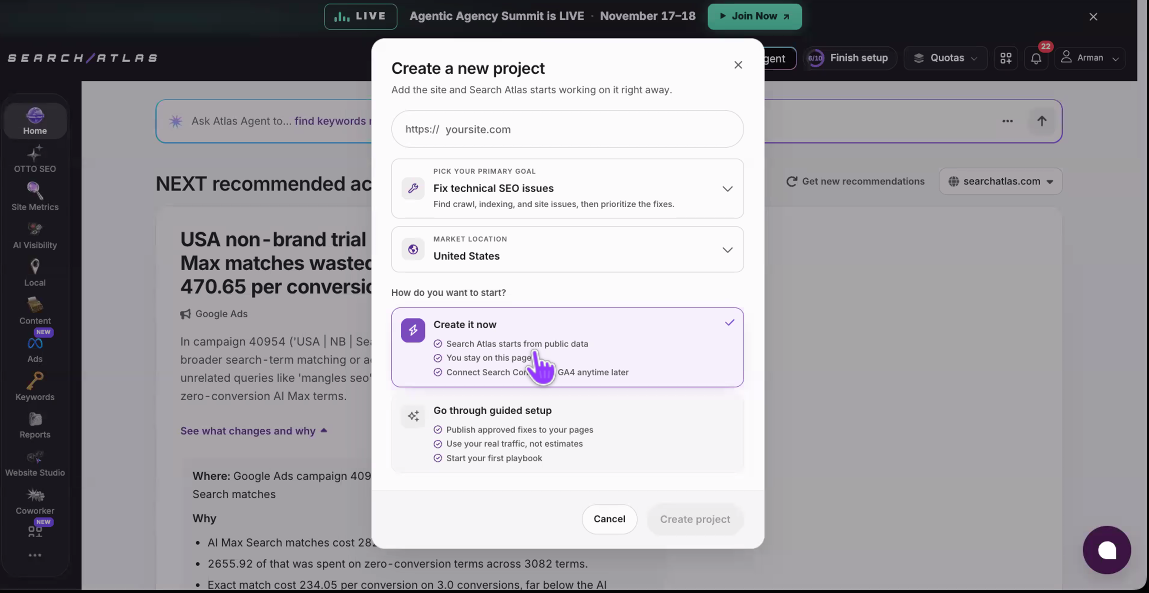
The Create a new project window starts a Search Atlas project and lets you choose the primary goal, market location and setup path.
🛠️ Open the Create a New Project Window
- Open Search Atlas.
- Go to the Home page.
- Select Add project.
The window asks for the site URL, a primary goal and a market location.
🌐 Enter the Site URL
Enter the website you want Search Atlas to work on in the URL field. The example field shows https:// yoursite.com.
🎯 Choose the Primary Goal
Open Pick your primary goal and select the goal that best matches your first priority. The example selection is:
- Fix technical SEO issues — find crawl, indexing and site issues, then prioritize the fixes.
📍 Select the Market Location
Open Market location and choose the country or market for the project. The example selection is United States.
⚡ Choose How to Start
The window offers two paths:
Create it now
Search Atlas starts from public data, keeps you on the current page and lets you connect Search Console and Google Analytics 4 later.
Go through guided setup
Guided setup is designed for a fuller setup. The screen says it can help you publish approved fixes to your pages, use real traffic instead of estimates and start your first playbook.
✅ Finish Creating the Project
After entering the URL, choosing the primary goal and market location, select the option you want and click Create project.
❓ Quick Answers
- Can I connect Search Console and GA4 later? Yes. The Create it now option says those connections can be added later.
- What is the technical SEO goal for? It is for finding crawl, indexing and site issues and prioritizing fixes.
- Can I cancel? Select Cancel to close the window without creating the project.
If you need further assistance, click the chat icon in the bottom-right corner of the platform to start a live chat with a member of our team.